Options
Everything init() and the Nuni component accept.
import { init } from "@nuniapp/widget"

const instance = init({
  project: "nuni_...", // required
})
instance.destroy()projectstring
Your public project ID. Commit it; it is not a secret.
stringgetPageKey?(url: URL) => string
Which URLs share comments. Defaults to the normalized path.
(url: URL) => stringpageKey?"path" | "path+search" | "path+hash"
A ready-made getPageKey: also tell pages apart by their query string (tracking parameters ignored) or their hash.
"path" | "path+search" | "path+hash""path"position?"bottom-right" | "bottom-center" | "bottom-left" | "top-right" | "top-center" | "top-left"
Where the toolbar starts. Visitors can drag it to another corner or edge middle, and it stays there for them.
"bottom-right" | "bottom-center" | "bottom-left" | "top-right" | "top-center" | "top-left""bottom-right"accentColor?string
Any CSS color for buttons and highlights. Text on it turns black or white for contrast.
stringtheme?"auto" | "light" | "dark"
auto follows the visitor's system setting.
"auto" | "light" | "dark""auto"label?string
Text on the toolbar's comment button.
string"Comment"hotkey?string | false
The key that starts a comment. false turns it off.
string | false"c"zIndex?number
Stacking order, if the widget has to sit below your UI.
number2147483646locale?string
Language for times and counts, like "de". Defaults to the browser's.
stringmessages?Partial<Messages>
Replace any of the widget's words. See below.
Partial<Messages>convexUrl?string
Self-hosting or local development: the Convex deployment URL.
stringconvexSiteUrl?string
Self-hosting or local development: the Convex HTTP actions URL.
stringappUrl?string
Self-hosting or local development: where the dashboard is served.
stringimages?boolean
Let commenters attach images and mark up the screenshot. They are public, like the comment. Claimed sites only.
booleantruecapture?{ console?, network?, dom?, screenshot? }
Page context attached to each comment for the owner. All on by default; set a key to false to turn it off.
{ console?, network?, dom?, screenshot? }<Nuni /> from @nuniapp/react takes the same props.
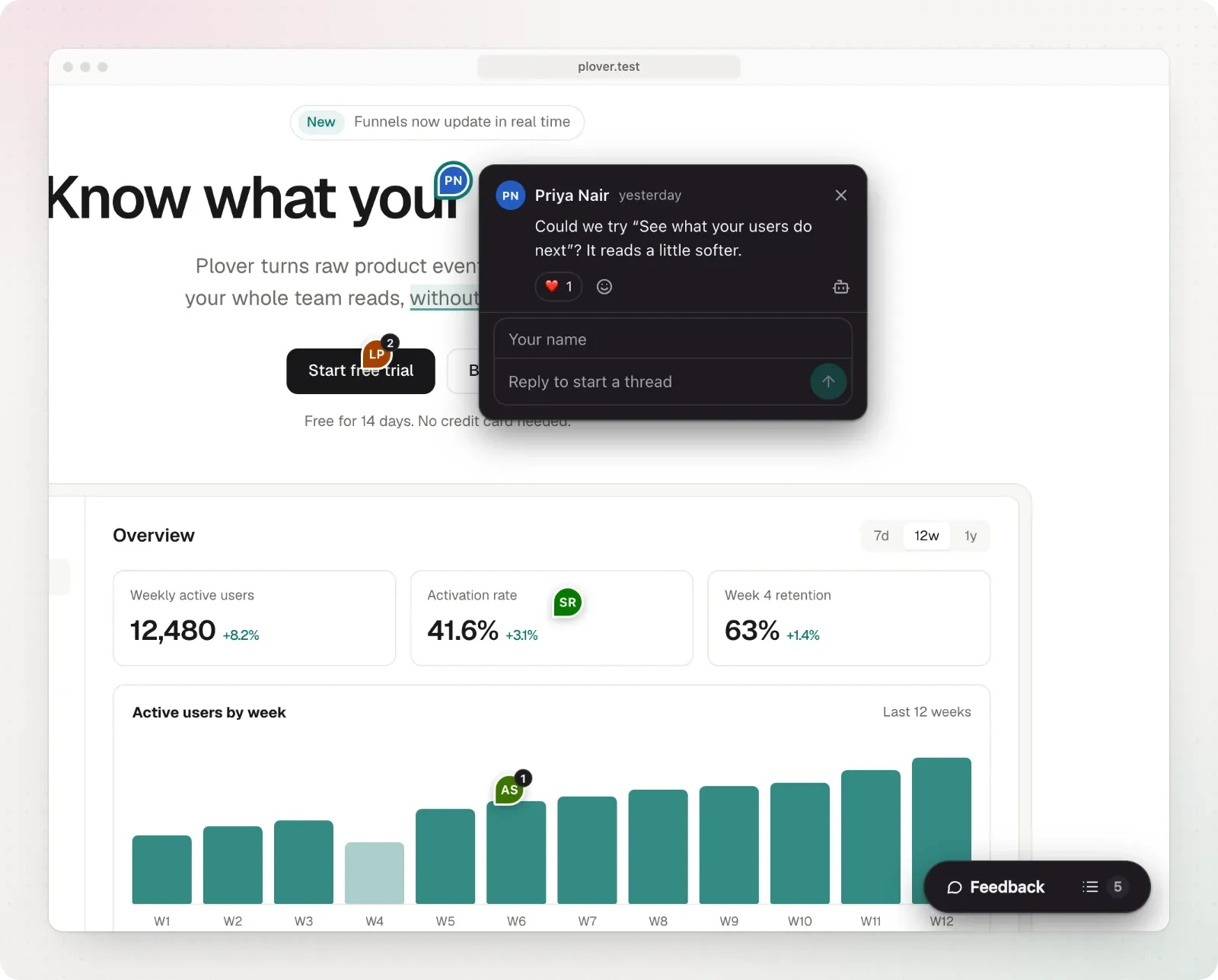
Look and language
<Nuni
  project="nuni_..."
  position="bottom-left"
  accentColor="#2563eb"
  theme="dark"
  label="Feedback"
  hotkey="f"
  locale="de"
  messages={{
    comment: "Kommentieren",
    post: "Senden",
    leaveComment: "Kommentar schreiben",
    replyCount: { one: "{count} Antwort", other: "{count} Antworten" },
  }}
/>
The full list of words is exported as messages from @nuniapp/widget. {name} parts are filled in, and a message with one and other forms (plus zero, two, few or many where a language has them) is picked by {count}. Shortcuts show ⌘ on Apple devices and Ctrl elsewhere.
With the script tag, use data attributes: data-position, data-accent-color, data-theme, data-label, data-hotkey ("false" turns it off), data-z-index, data-locale, data-page-key and data-images ("false" turns images off).
Page context
Each comment carries context that only the project owner can see (details on the privacy page):
| Key | What is captured |
|---|---|
screenshot |
An image of the element with a small margin, sent with the comment and shown only to the owner. Loaded on demand so the widget stays small |
console |
The latest console errors and warnings |
network |
The latest failed requests (method, status, origin and path) |
dom |
The element’s markup, without form values, and key computed styles |
With the script tag, use data attributes: data-capture-screenshot="false", data-capture-console="false", data-capture-network="false" and data-capture-dom="false".
Form fields are always painted over, and any element with data-nuni-mask is hidden from the screenshot, the markup and the pin’s stored text:
<section data-nuni-mask>…private details…</section>Keyboard
| Key | Action |
|---|---|
C (the hotkey) |
Start or stop adding a comment, or comment on the selected text |
Shift + C (Shift + the hotkey) |
Hide or show the pins (the toolbar’s eye button does the same) |
| Arrow keys, Enter | While adding: move to the parent, child or sibling; comment on it |
| Esc | Cancel, close the comment, then the panel |
| Cmd or Ctrl + Enter | Post the comment |